
Photo by Saad Ahmad on Unsplash
In this article I will share my experience implementing a vector database with OpenSearch and TF-IDF with python. Before we start, let’s talk about the vector database itself, the vector database is a database that store a vector that can be used to do a search based on several algorithm. Then, what is vector actually, the vector is a math representation of anything using matrix form with certain dimension, usually in programming we use array to reflect this matrix structure.
The vector database is so popular nowadays, because of the capability to extends information into LLM for answer specifics question that needs confidential data as an input like several inquiries below:
- Audit our Financial Reports
- Forecasting Company Goals for the Next Quarter
- Fraud Analytics
- and Many More
This technique integration known as Retrieval Augmented Generation (RAG). Moreover, other use-cases also covered by this advanced technology which discussed on the following section.
Vector Database Use-Cases
The vector database is really flexible to represent anything (i.e text, image, video and any unstructured form) in form of matrix. In vector we can add any features to enhance our data information. Therefore from that rich information, we can solve several use cases with vector database as shown below:
- Semantic Search
- RAG
- Image and Video Search
- NLP
- Recommendation System
- Etc
Pre-Requisites
Before we start, we have to install Docker, OpenSearch and Python in our local machine.
Install Docker
We used docker to run OpenSearch in our local machine. Please follow the installation steps from the docker official website:
Make sure the docker and docker-compose was successfully install by running command docker version and docker-compose version like the instruction below:
$ docker version
Client: Docker Engine - Community
 Version: 27.2.0
 API version: 1.47
 Go version: go1.21.13
 Git commit: 3ab4256
 Built: Tue Aug 27 14:15:09 2024
 OS/Arch: linux/amd64
 Context: default

Server: Docker Engine - Community
 Engine:
 Version: 27.2.0
 API version: 1.47 (minimum version 1.24)
 Go version: go1.21.13
 Git commit: 3ab5c7d
 Built: Tue Aug 27 14:15:09 2024
 OS/Arch: linux/amd64
 Experimental: false
 containerd:
 Version: 1.7.21
 GitCommit: 472731909fa34bd7bc9c087e4c27943f9835f111
 runc:
 Version: 1.1.13
 GitCommit: v1.1.13-0-g58aa920
 docker-init:
 Version: 0.19.0
 GitCommit: de40ad0

$ docker-compose version
docker-compose version 1.29.2, build 5becea4c
docker-py version: 5.0.0
CPython version: 3.7.10
OpenSSL version: OpenSSL 1.1.0l 10 Sep 2019
Install OpenSearch
Disclaimer, We use the simplest setup for the sake of development. This setup is not secure for our production environment. For the production environment we have to setup the instance with secure options. We can follow the secure installation on OpenSearch official website.
The easiest way to install OpenSearch in our local machine is using docker-compose by setup the docker-compose.yaml file with the following spec:
version: '3.9'

services:
 oss:
 image: opensearchproject/opensearch:2.15.0
 restart: always
 environment:
 discovery.type: single-node
 DISABLE_SECURITY_PLUGIN: "true"
 ports:
 - 9200:9200
 - 9600:9600
 volumes:
 - opensearch-data1:/usr/share/opensearch/data
volumes:
 opensearch-data1:
To run this setup, we can type docker-compose up -d:
$ docker-compose up -d
Creating network "opensearch_default" with the default driver
Creating opensearch_oss_1... done
After that, we can access the OpenSearch about page by visit the http://localhost:9200in our browser.
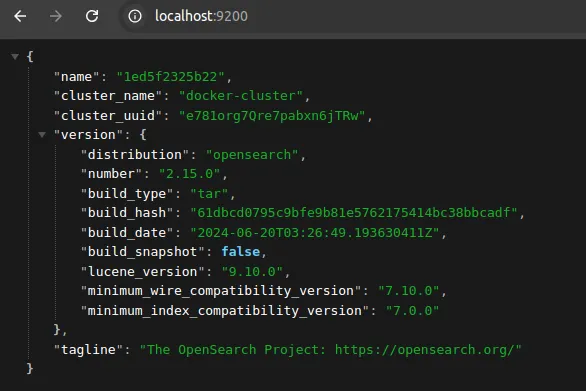
OpenSearch About Page
If we want to turn off the OpenSearch service (container in docker) we can type docker-compose down:
$ docker-compose down
Stopping opensearch_oss_1... done
Removing opensearch_oss_1... done
Removing network opensearch_default
Install Python and virtualenv
In this article I used python 3 that maybe different with your python version in your local machine. To successfully run every python code in this discussion you may install the same python version. For the detail installation in different Operating System we can follow from the python official sites:
Make sure your installation was successful by typing python — version in our command line:
$ python --version
Python 3.8.10
And also make sure pip for python package manager is available:
$ pip --version
pip 20.0.2 from /usr/lib/python3/dist-packages/pip (python 3.8)
The last thing is installing the python virtualenv for isolate the python environment. This is the best practice to create a python project, ensuring the python package doesn’t effect to our global library:
$ pip install virtualenvCreate OpenSearch Indices
We will use a products data from amazon website as a sample to demonstrate the vector database feature. I already store the data sample into my github gist. Before we load the data we have to create an OpenSearch product indices first.
OpenSearch indices is similar with table in RDBMS, it’s need a schema to define (it’s called mappings and settings in OpenSearch terms). Even the OpenSearch is schemaless database, define the mappings it’s important to ensure data consistency and expectation.
Let’s define the product mappings to our OpenSearch by executing the cURL request below:
$ curl --location --request PUT 'http://localhost:9200/product' \
--header 'Content-Type: application/json' \
--data '{
 "settings": {
 "index": {
 "knn": true,
 "knn.algo_param.ef_search": 100
 }
 },
 "mappings": {
 "properties": {
 "title": {
 "type": "text"
 },
 "description": {
 "type": "text"
 },
 "vector": {
 "type": "knn_vector",
 "dimension": 3041,
 "method": {
 "name": "hnsw",
 "space_type": "cosinesimil",
 "engine": "nmslib",
 "parameters": {
 "ef_construction": 128,
 "m": 24
 }
 }
 }
 }
 }
}'
Ensuring our product indices has successfully created by visiting http://localhost:9200/_cat/indicesin our browser:

OpenSearch product indices
Load Data to OpenSearch
The OpenSearch product indices was created but the data still empty, to load the sample data we can run the cURL request below that use _bulkAPI:
curl -L https://gist.githubusercontent.com/sog01/1fb9e3ad87198a54a48b8a4e5a47c9b5/raw/21f72f47e9ab00ca512015ffdf59f730abff1341/amazon-products-sample.json | \
curl -X POST "http://localhost:9200/_bulk" \
 -H "Content-Type: application/x-ndjson" \
 --data-binary @-
To peek some data we can use search API by access the endpoint http://localhost:9200/product/_searchin our browser:
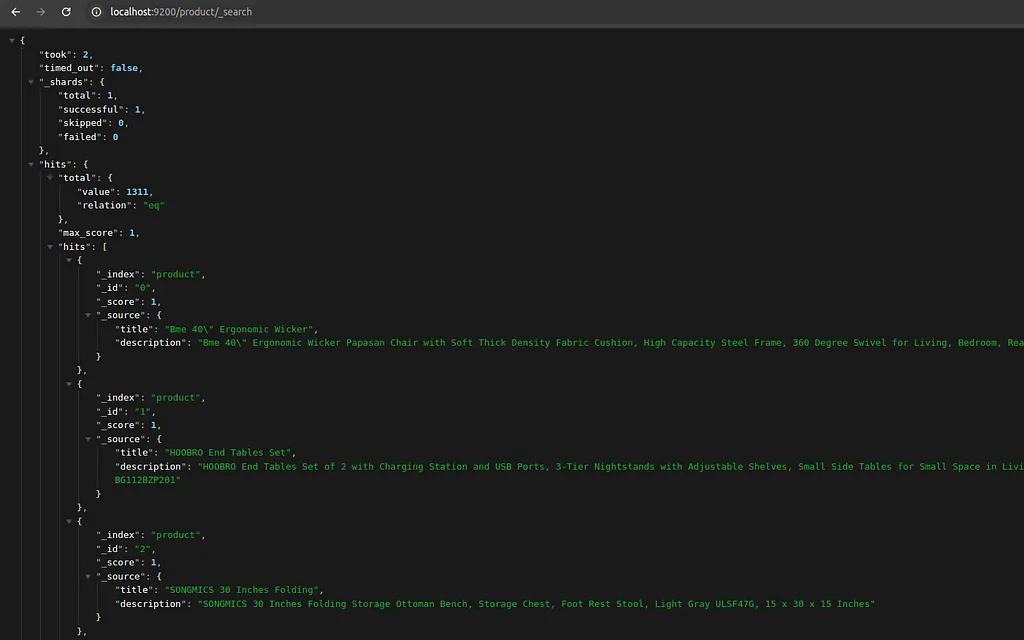
OpenSearch products data
Performing Multi Match Search
To demonstrate the benefit of vector database, we have to compare the search result of OpenSearch existing search vs the vector database search.
We use multi match API to perform an existing search that match of the given query in our sample data. We will use a three query from apple product to easily compare the search result:
- macbook
- iphone
- ipad
Let’s query a top 3 products based on given query above:
# Request of 'macbook' search products
curl --location --request GET 'http://localhost:9200/product/_search' \
--header 'Content-Type: application/json' \
--data '{
 "size": 3,
 "query": {
 "multi_match": {
 "query": "macbook",
 "fields": ["title", "description"]
 }
 }
}'

# Search response from 'macbook' query
{
 "took": 1,
 "timed_out": false,
 "_shards": {
 "total": 1,
 "successful": 1,
 "skipped": 0,
 "failed": 0
 },
 "hits": {
 "total": {
 "value": 71,
 "relation": "eq"
 },
 "max_score": 4.7237887,
 "hits": [
 {
 "_index": "product",
 "_id": "1248",
 "_score": 4.7237887,
 "_source": {
 "title": "MacBook Pro Charger,100W USB",
 "description": "MacBook Pro Charger,100W USB C Charger Compatible with MacBook Pro 16,15,14,13 Inch 2023 2022 2021,MacBook Air 13,13.6,15 Inch PD Fast Charging Work with 96W 87W 61W MacBook Type-C Charger"
 }
 },
 {
 "_index": "product",
 "_id": "1265",
 "_score": 4.7237887,
 "_source": {
 "title": "MacBook Pro Charger,100W USB",
 "description": "MacBook Pro Charger,100W USB C Charger Compatible with MacBook Pro 16,15,14,13 Inch 2023 2022 2021,MacBook Air 13,13.6,15 Inch PD Fast Charging Work with 96W 87W 61W MacBook Type-C Charger"
 }
 },
 {
 "_index": "product",
 "_id": "1283",
 "_score": 4.7237887,
 "_source": {
 "title": "MacBook Pro Charger,100W USB",
 "description": "MacBook Pro Charger,100W USB C Charger Compatible with MacBook Pro 16,15,14,13 Inch 2023 2022 2021,MacBook Air 13,13.6,15 Inch PD Fast Charging Work with 96W 87W 61W MacBook Type-C Charger"
 }
 }
 ]
 }
}

# Do other search queries in our local machine
# You may try a different queries to explore another result
We can summarize the total numbers of search result respectively as follows:
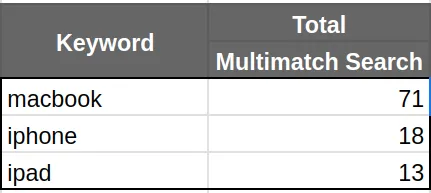
The total numbers of multi match search result
Vector Embedding and Search with TF-IDF
We will do a vector embedding using python with TF-IDF. TF-IDF is a weighting system that assigns a weight to each word in a document based on its term frequency (tf) and the reciprocal document frequency (tf) (idf). It has following mathematical equation as follows:
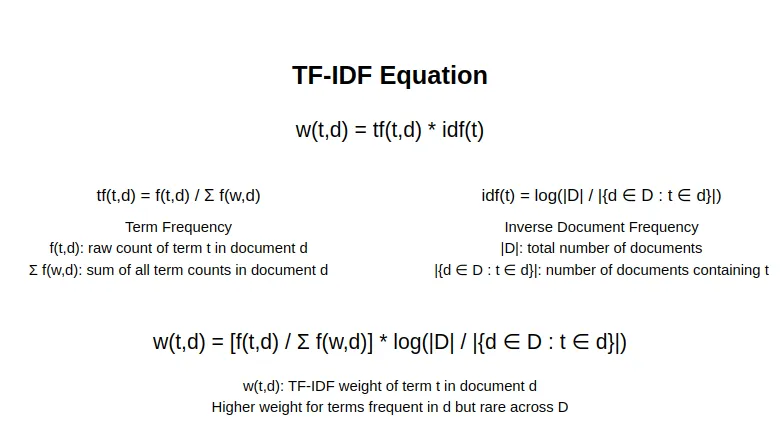
TF-IDF Mathematical Equation
Before we write a code we have to activate a virtualenv and install several dependencies:
# activate venv
mkdir vector-database
cd vector-database
python -m venv vector-database-env
source vector-database-env/bin/activate

# install dependency
pip install requests # for http request
pip install scikit-learn # for vector embedding
pip install opensearch-py # for OpenSearch client
After our setup done, let’s write a python code to transform our sample data into vector forms:
import requests
import json
from sklearn.feature_extraction.text import TfidfVectorizer

def get_sample_data(url):
 response = requests.get(url)
 encoding = response.encoding if response.encoding else 'utf-8'
 content_string = response.content.decode(encoding)
 sample_data = [json.loads(bulk_request) for i, bulk_request in enumerate(content_string.split('\n')) if (i + 1) % 2 == 0]
 return sample_data

sample_data = get_sample_data(url = 'https://gist.githubusercontent.com/sog01/1fb9e3ad87198a54a48b8a4e5a47c9b5/raw/21f72f47e9ab00ca512015ffdf59f730abff1341/amazon-products-sample.json')

s_data = [data['title']+'\n'+data['description'] for data in sample_data]
vectorizer = TfidfVectorizer().fit(s_data)
matrix = vectorizer.transform(s_data)
print(matrix)

# output the sparse matrix
# (0, 2973) 0.042366769375646804
# (0, 2955) 0.26631193924426066
# (0, 2725) 0.1891922583983143
# (0, 2677) 0.16167643743993138
# (0, 2609) 0.13857130144236895
# (0, 2547) 0.15230526292098112
# (0, 2535) 0.2155786422090817
# (0, 2368) 0.05942009509382926
# (0, 2287) 0.16923172959737698
# (0, 2263) 0.2155786422090817
# (0, 2080) 0.2155786422090817
# (0, 1763) 0.15755556875426402
# (0, 1746) 0.06085372376589912
# (0, 1503) 0.15755556875426402
# (0, 1327) 0.11360979265926835
# (0, 1319) 0.038245900689979455
# (0, 1219) 0.09449629421389474
# (0, 1183) 0.2646894682400876
# (0, 1040) 0.20390248136596878
# (0, 1034) 0.20390248136596878
# (0, 1002) 0.13003974779588107
# (0, 822) 0.10935014319456499
# (0, 782) 0.15755556875426402
# (0, 677) 0.4311572844181634
# (0, 657) 0.09262435298124835
#::
# (1310, 3013) 0.2550938172091239
# (1310, 2973) 0.03927285796972892
# (1310, 2954) 0.17050925251604246
# (1310, 2824) 0.16639435347597253
# (1310, 2752) 0.11088573026828705
# (1310, 2707) 0.1998356145996563
# (1310, 2668) 0.13973961974978472
# (1310, 2560) 0.10038193509262683
# (1310, 2323) 0.16639435347597253
# (1310, 2248) 0.18901212691860428
# (1310, 1610) 0.29578295814682143
# (1310, 1573) 0.08204035426322669
# (1310, 1418) 0.10860280093070815
# (1310, 1337) 0.12938860467084887
# (1310, 1319) 0.03545292331365046
# (1310, 1261) 0.17050925251604246
# (1310, 1213) 0.1998356145996563
# (1310, 1019) 0.1998356145996563
# (1310, 966) 0.1998356145996563
# (1310, 511) 0.5439982205912834
# (1310, 510) 0.10417714162730494
# (1310, 491) 0.05549654352447381
# (1310, 314) 0.15432906025832105
# (1310, 113) 0.13973961974978472
# (1310, 5) 0.11338231534181074
Enhancing Vector with Semantic Feature
In the form of vector we can easily add other information like semantic feature. In this article we only focus on the three keywords “macbook”, “iphone” and “ipad” that we define as a semantic meaning (the other keywords we left it as it is). Hence, the three keywords are an apple’s products that relate each others.
To do that let’s define a similarity score for these keywords on each other respectively (we used a custom score here, that we might change in the future based on our needs):
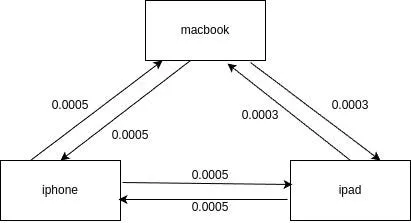
Apple’s products similarity score
Based on our similarity score definition above, we can alter the embedding vector that we already generated before, using TF-IDF weighting system by writing python code like below:
from sklearn.preprocessing import normalize

def enhance_semantic_vectors(matrix, features):
 enhanced_matrix = matrix.toarray().copy()
 for i, doc_vector in enumerate(enhanced_matrix):
 words = [features[col] for col, value in enumerate(doc_vector) if value > 0]
 empty_vectors = {features[col]: col for col, value in enumerate(doc_vector) if value == 0}
 semantic_vector = calculate_similarity_score(empty_vectors, words)
 if len(semantic_vector) > 0:
 for vec in semantic_vector:
 doc_vector[vec[0]] = vec[1]
 enhanced_matrix[i] = doc_vector
 return normalize(enhanced_matrix)

def calculate_similarity_score(empty_vectors, words):
 semantic_apple_products = {
 'macbook': {'iphone': 0.0005, 'ipad': 0.0003},
 'iphone': {'ipad': 0.0005, 'macbook': 0.0005},
 'ipad': {'iphone': 0.0005, 'macbook': 0.0003}
 }

 semantic_vector = []
 for word in words:
 if word in semantic_apple_products:
 for key in semantic_apple_products[word].keys():
 if key in empty_vectors:
 semantic_vector.append((empty_vectors[key],
 semantic_apple_products[word][key]))
 return semantic_vector

matrix_with_semantic_feature = enhance_semantic_vectors(matrix, vectorizer.get_feature_names_out())
Store and Search Embedding Vector in OpenSearch
Finally, after our embedding vector is ready, we can store it in our OpenSearch by using _bulk API using python:
from opensearchpy import OpenSearch

def store_vector_to_opensearch(client, matrix_with_semantic_feature):
 bulk_data = []
 for index, vector in enumerate(matrix_with_semantic_feature):
 bulk_data.append(json.dumps({
 "update": {
 "_index": "product",
 "_id": index
 }
 }))

 bulk_data.append(json.dumps({
 "doc": {'vector': list(vector)},
 "doc_as_upsert": True
 }))
 body = '\n'.join(bulk_data) + '\n'
 response = client.bulk(body)

 success_count = sum(1 for item in response['items'] if item['update']['status'] in [200, 201])
 failed_count = len(response['items']) - success_count

 print(f"Successfully updated {success_count} documents")
 if failed_count > 0:
 print(f"Failed to update {failed_count} documents")

host = 'localhost'
port = 9200
client = OpenSearch(hosts=[{'host': host, 'port': port}])

store_vector_to_opensearch(client, matrix_with_semantic_feature)
Then, we can do a vector search by using knn feature from OpenSearch with python code. Let’s write the code and examine the results which compared with multi match search:
def run_vector_search(client, vector, size, k=100):
 query = {
 "size": size,
 "query": {
 "script_score": {
 "query": {
 "knn": {
 "vector": {
 "vector": vector,
 "k": k
 }
 }
 },
 "script": {
 "source": "_score > 0.5? _score: 0"
 }
 }
 },
 "min_score": 0.5,
 "_source": ["title", "description"]
 }

 try:
 response = client.search(index='product', body=query)
 return response
 except Exception as e:
 print(f"An error occurred: {str(e)}")
 return None

vector_query = vectorizer.transform(['macbook'])
search_result = run_vector_search(client, vector_query.toarray()[0], 3)
print(json.dumps(search_result))

# output from 'macbook' query
# {
# "took": 3,
# "timed_out": false,
# "_shards": {
# "total": 1,
# "successful": 1,
# "skipped": 0,
# "failed": 0
# },
# "hits": {
# "total": {
# "value": 82,
# "relation": "eq"
# },
# "max_score": 0.6365238,
# "hits": [
# {
# "_index": "product",
# "_id": "1248",
# "_score": 0.6365238,
# "_source": {
# "description": "MacBook Pro Charger,100W USB C Charger Compatible with MacBook Pro 16,15,14,13 Inch 2023 2022 2021,MacBook Air 13,13.6,15 Inch PD Fast Charging Work with 96W 87W 61W MacBook Type-C Charger",
# "title": "MacBook Pro Charger,100W USB"
# }
# },
# {
# "_index": "product",
# "_id": "1265",
# "_score": 0.6365238,
# "_source": {
# "description": "MacBook Pro Charger,100W USB C Charger Compatible with MacBook Pro 16,15,14,13 Inch 2023 2022 2021,MacBook Air 13,13.6,15 Inch PD Fast Charging Work with 96W 87W 61W MacBook Type-C Charger",
# "title": "MacBook Pro Charger,100W USB"
# }
# },
# {
# "_index": "product",
# "_id": "1283",
# "_score": 0.6365238,
# "_source": {
# "description": "MacBook Pro Charger,100W USB C Charger Compatible with MacBook Pro 16,15,14,13 Inch 2023 2022 2021,MacBook Air 13,13.6,15 Inch PD Fast Charging Work with 96W 87W 61W MacBook Type-C Charger",
# "title": "MacBook Pro Charger,100W USB"
# }
# }
# ]
# }
# }
Here’s are the total number of the search results from three queries ‘macbook’, ‘iphone’ and ‘ipad’ using vector search compared with multi match:
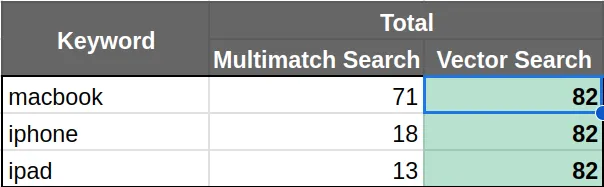
Vector Search vs Multimatch Search
As we can see in the search result above, the vector search shows more result rather than multi match search. Since, the vector search implement the semantic meaning on these three keywords rather than the multi match that only search based on the given keyword.
Conclusion
The implementation of vector database gives much flexibility rather than traditional search (like the multi match search). Because we can add many features to the data vector with ease which been demonstrated in this article by adding the semantic meaning.
From adding semantic meaning makes our search gives more results. We might improve this in future by add more semantic meaning to other keywords or tweak the similarity score for the better result.
For the complete source code, you can access in my github repository https://github.com/sog01/vector-database-demonstration. Hopefully this article can help you understand about the vector database concept. And see you on the next posts, always happy coding!